24 October 2026
The class profile on the studio screen
RideComposer 2.0.25: external screen 2 shows the class intensity profile, full screen on its own or as a band below your video. Your riders see what is coming.
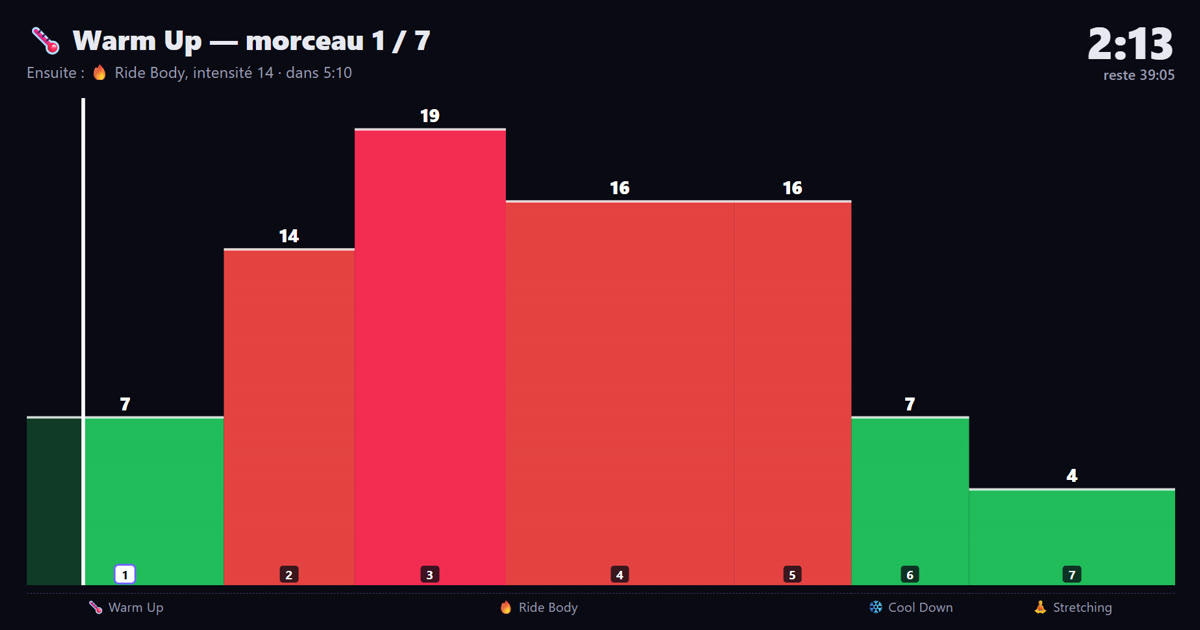
Many studios have a big screen on the wall. Until now, RideComposer could project a video on it. Since version 2.0.25, it can also show the class itself: the intensity profile of every track, and exactly where you are in it.
Your riders see the climb coming. They know how long it is until the recovery. They pace their effort.
One block per track
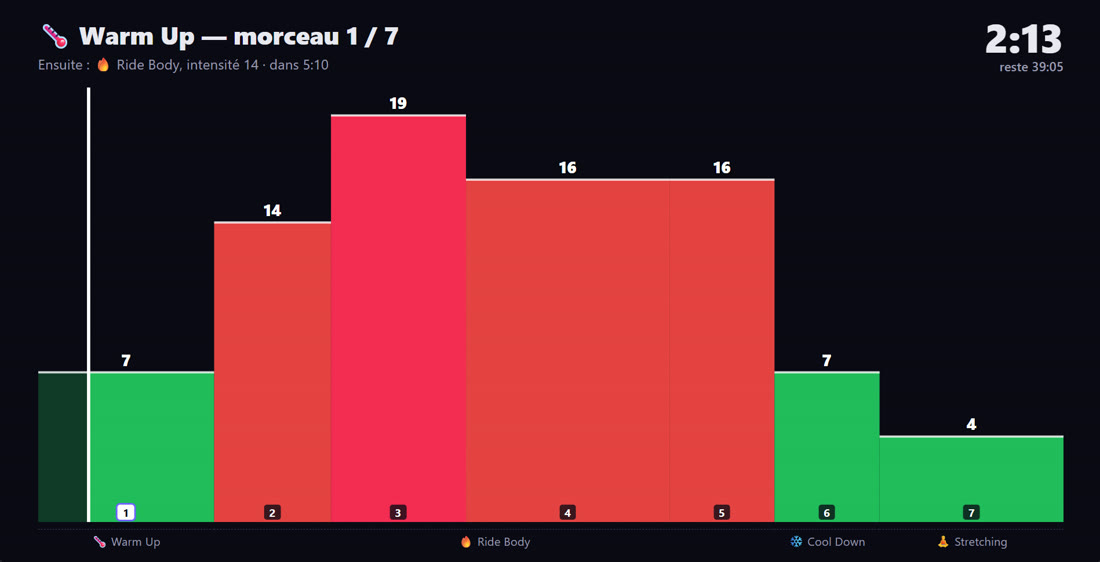
Each track of the class is a block. Its width follows the length of the track, its height the intensity, from 1 to 20, in the same colours as the RideComposer intensity graph. The value is written above the block, the track number below, and the current track is framed.
A white line moves with the music actually being played. What has already been ridden fades out, what is still to come stays bright: at a glance, you see how far you have come and how far there is to go.
What comes next
At the top of the screen: the part of the class and the current track ("Warm Up — track 1 / 7"), then what follows: the part, the intensity of the next track and the time before it starts. On the right, in large type, the elapsed time, and below it the time left in the class. They are the same counters as in your Coach Mode.
At the bottom, the four parts of the class: Warm Up, Ride Body, Cool Down and Stretching.
With your video
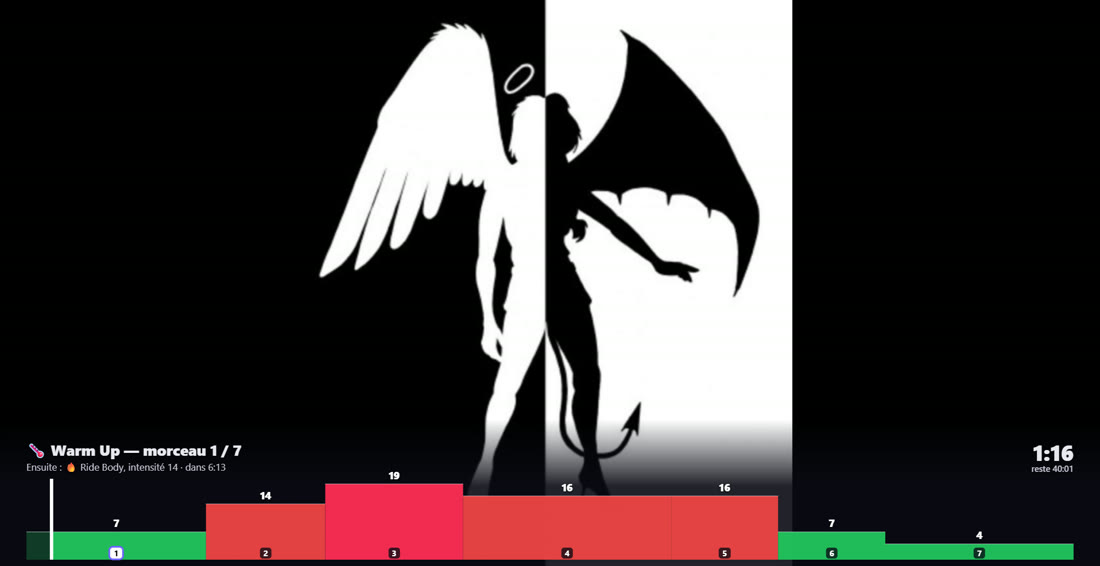
Already projecting a video during your classes? The video stays the main picture. The profile sits as a band at the bottom of the screen, on a background that fades upwards so the picture shows through.
How to show it
In Coach Mode, next to the 🎬 video button, there is a new button: 📈.
- 📈 alone: the profile fills screen 2.
- 🎬 then 📈 (or the other way round): the video, with the profile as a band.
- Remove one of the two during the class: the other stays on screen.
The external screen connects over HDMI. Without a second screen, the window opens on your main screen and RideComposer tells you so.
The class profile on screen 2 is part of the Pro+ plan. It has been in RideComposer since version 2.0.25, available from ridecomposer.com.